Work Location
Overview
Work Location provides information regarding where each employee works. An Institution will have many different locations and the employees of an organization can work in different locations and regions.
Navigation 
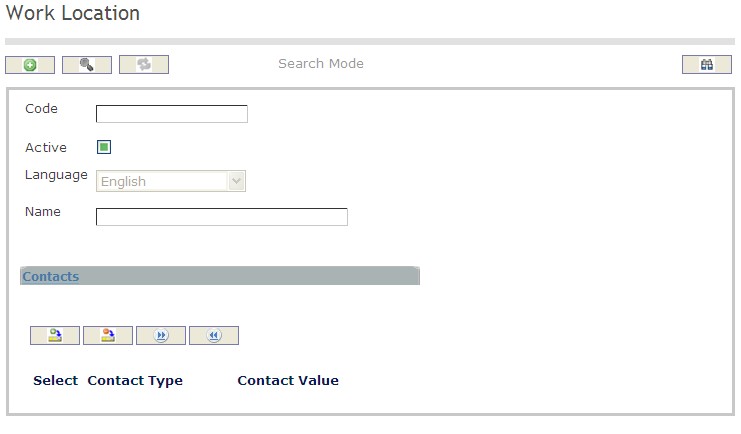
How to SEARCH:
- Enter the information to be used as retrieval criteria in the appropriate field (s). If you prefer to see a list of all Work Locations, leave all fields blank.
- Click on the Find icon
 .
.
The Work Location screen includes the following fields:
| Report Fields | Description |
| Code | Unique identification code of the work location |
| Active | Active Status - if checked, Work Location is available |
| Language | Language used |
| Name | Name of the Work Location |
Create a Work Location
Work Location provides information regarding where each employee works.
To CREATE a Work Location, follow the steps below:
Navigation 
By default, you will be in Search Mode.
- Click on the New icon
 (you will then be in Insert Mode).
 - Enter the new Work Location information. Fields with an asterisk
 are mandatory fields.
 - Enter the Code, click on the Active checkmark, and select the Language, as required.
- Code: Unique identification code of the work location.
- Active: Active Status - if checked, Work Location is available.
- Language: Language used.
- Enter Name.
- Name: Name of the Work Location.
To ADD Contacts to the Work Location, if required:
1. Click on the  tab and then click on the New icon
  to enter Contacts (refer to Contacts for more information).
2. Click on the Save and Return icon  to save the Contact information and return to Work Locations, or click on the Discard icon
  to discard the Contact entry and return to Work Locations.
3. Click the Remove icon  to remove the selected Contacts, if required.
4. Click the individual Select Checkbox (es) to select and de-select the Contact (s), as required, or click the Select All icon  or Unselect All
  icon, to select all Contacts or de-select all Contacts, if required.
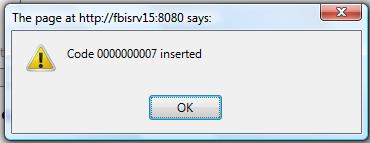
Click on the Save icon  at the bottom of the Work Location to save your new Work Location information. A window will appear to confirm.
Contacts
Navigation (From  click the New Icon
 under
under  )
)
Create a Contact
Navigation (From  click the New Iconunder
  )
)
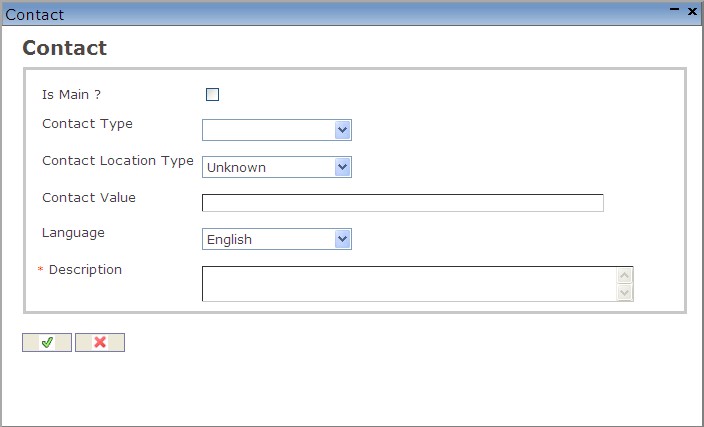
1. Enter the new Contact information. Fields with an asterisk are mandatory fields.
2. Click on the Is Main? checkmark, as required.
- Is Main?: Is Main? Status - if checked, this will be the main contact information.
3. Select Contact Type.
- Contact Type: Choose from the drop-down menu, either Electronic Mail, Fax, Mobile Phone, Pager, Phone, or Web Site.
4. Select Contact Location Type.
- Contact Location Type: Choose from the drop-down menu
5. Enter Contact Value.
- Contact Value: Enter a description of the contact value
6. Select a Language.
- Language: Language used
7. Enter Description.
- Description: Enter a short description of the contact
8. Click on the Save and Return icon to save the Contact information and return to the Work Location screen, or click on the Discard icon to discard the Contact entry and return to the Work Location screen.
Delete a Work Location
Work Location provides information regarding where each employee works.
To DELETE a Work Location, follow the steps below:
Navigation 
By default, you will be in Search Mode.
- Find the Work Location you want to Delete
- Enter the information to be used as retrieval criteria in the appropriate field(s). If you prefer to see all Work Locations, leave all fields blank.
- Click Find

- Select the Work Location you want to Delete
- Click on the Delete icon

- A window will appear asking you to confirm
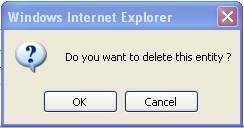
4. Click OK to confirm and delete the Work Location.
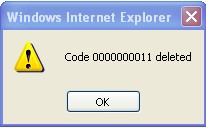
5. A window will be displayed confirming the Work Location has been deleted
To Verify that the Work Location has been Deleted:
- Click on the Search icon

- Enter the Work Location information
- Click on the Find icon
- The window will appear

Modify a Work Location
Work Location provides information regarding where each employee works.
To MODIFY a Work Location, follow the steps below:
Navigation 
By default, you will be in Search Mode.
- Enter the information to be used as retrieval criteria in the appropriate field(s).
If you prefer to see the list of all Work Locations, leave all fields blank. - Click on the Find icon . The list of Work Locations meeting the retrieval criteria will appear.
- Click on the Work Location you want to modify.
You will then be in Update/Delete Mode. - Make the necessary modification(s). To add or remove Contacts, refer to Contacts.
- Click on the Update icon
 at the bottom of the screen to save your modifications. A window will appear to confirm the modification. Click OK to confirm.