Beneficiary Type
Overview
This screen requires allows the user to be able to define possible Beneficiary types with a tab at the bottom to define the different Benefit Shares per Beneficiary type. Some examples of beneficiary types include current wife, father, mother, child, guardian, ex-wife, etc.
Navigation 
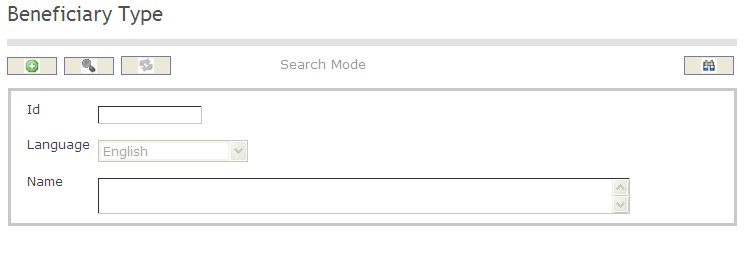
How to SEARCH:
- Enter the information to be used as retrieval criteria in the appropriate field (s). If you prefer to see a list of all Beneficiary Types, leave all fields blank.
- Click on the Find icon
 .
.
The Beneficiary Type screen includes the following fields:
| Report Fields | Description |
| ID | Unique identification code of the Beneficiary Type |
| Language | Language used |
| Name | Name of the beneficiary |
Create a Beneficiary Type
This screen requires allows the user to be able to define possible Beneficiary types with a tab at the bottom to define the different Benefit Shares per Beneficiary type. Some examples of beneficiary types include current wife, father, mother, child, guardian, ex-wife, etc. To ADD a Beneficiary Type, follow the steps below:
Navigation 
By default, you will be in Search Mode.
- Click on the New icon
 (you will then be in Insert Mode).
 - Enter the new Beneficiary Type information. Fields with an asterisk
 are mandatory fields.
 - Enter the ID and select the Language, as required.
- ID: Unique identification code of the Beneficiary Type.
- Language: Language used.
- Enter Name.
- Name: Name of the beneficiary.
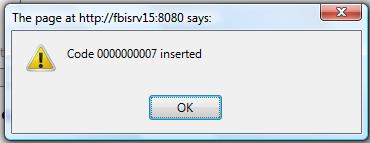
5. Click on the Save icon  at the bottom of the Beneficiary Type to save your new Beneficiary Type information. A window will appear to confirm.
Delete a Beneficiary Type
This screen requires allows the user to be able to define possible Beneficiary types with a tab at the bottom to define the different Benefit Shares per Beneficiary type. Some examples of beneficiary types include current wife, father, mother, child, guardian, ex-wife, etc. To DELETE a Beneficiary Type, follow the steps below:
Navigation 
By default, you will be in Search Mode.
- Find the Beneficiary Type you want to Delete
- Enter the information to be used as retrieval criteria in the appropriate field(s). If you prefer to see all Beneficiary Type, leave all fields blank.
- Click Find

- Select the Beneficiary Type you want to Delete
- Click on the Delete icon

- A window will appear asking you to confirm
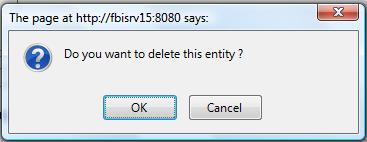
- Click OK to confirm and delete the Beneficiary Type.
- A window will be displayed confirming the Beneficiary Type has been deleted
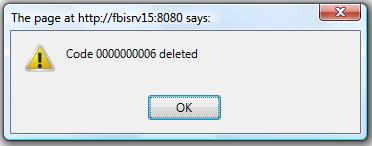
To Verify that the Beneficiary Type has been Deleted:
- Click on the Search icon

- Enter the Beneficiary Type information
- Click on the Find icon
- The window will appear

Modify a Beneficiary Type
This screen requires allows the user to be able to define possible Beneficiary types with a tab at the bottom to define the different Benefit Shares per Beneficiary type. Some examples of beneficiary types include current wife, father, mother, child, guardian, ex-wife, etc. To MODIFY a Beneficiary Type, follow the steps below:
Navigation 
By default, you will be in Search Mode.
- Enter the information to be used as retrieval criteria in the appropriate field(s).
If you prefer to see the list of all Beneficiary Type, leave all fields blank. - Click on the Find icon . The list of Beneficiary Type meeting the retrieval criteria will appear.
- Click on the Beneficiary Type you want to modify.
You will then be in Update/Delete Mode. - Make the necessary modification(s).
- Click on the Update icon
 at the bottom of the screen to save your modifications. A window will appear to confirm the modification. Click OK to confirm.