Interview Assignments
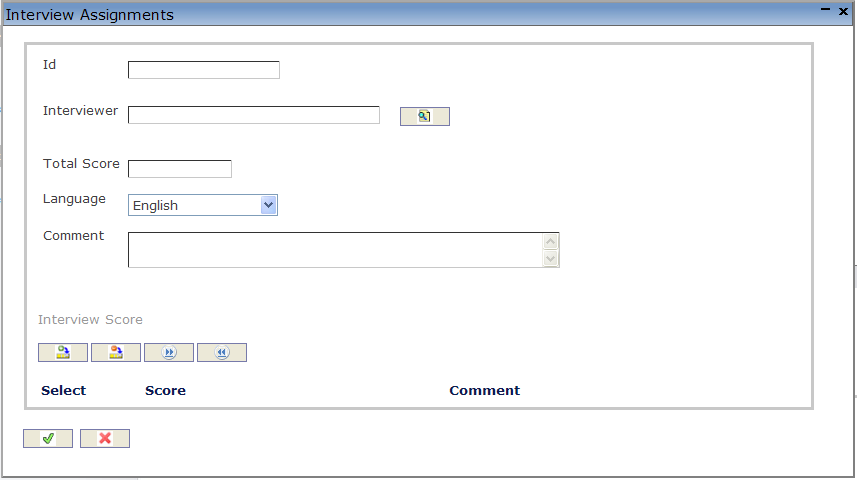
The applicants selected for an interview are assigned to an interviewer and the scores are collected through this screen.
Navigation (From  click on the New icon
  under
under  )
)
Create An Interview Assignment
1. Enter the new Interview Assignment information. Fields with an asterisk  are mandatory fields.
2. Enter the Id, Interviewer, Total Score and select the Language, as required.
- Id: Unique Identification Code of the Attachment.
- Language: Language used.
- Total Score: Total score for an applicant as given by the interviewer.
- To enter the Interviewer, if required, click on the Lookup icon
 , click on Find icon
  to retrieve the Interviewer from the list, then select the Interviewer.
3. Enter any comments under the Comments field.
To ADD an Interview Score (refer to Interview Score for more information)
Click on the New icon
under  to add new Recruitment References.
Click on the Save and Return icon
 to save the Recruitment Reference and return to the Interview Schedule screen, or click on the Discard icon
  to discard the Recruitment Reference entry and return to the Interview Schedule.
Click the individual Select Checkbox (es), under
 to select and de-select the Recruitment Reference (s), as required, or click the Select All icon
  or Un-select All
  icon, to select or de-select all Recruitment Reference (s), if required.
Click the Remove icon
 to remove the selected Recruitment Reference(s), if required
Repeat steps 1 to 4 for all required Recruitment References.
Click on the Save and Return icon to save the Interview Assignment and return to the Interview Schedule screen, or click on the Discard icon to discard the Interview Assignment entry and return to the Interview Schedule screen.
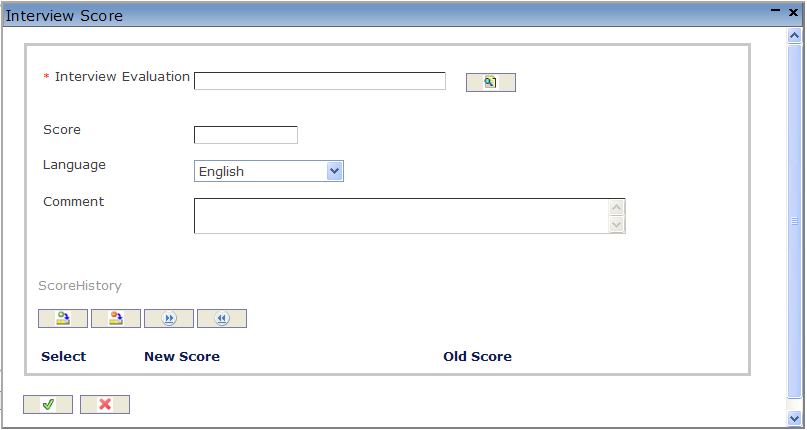
Interview Score
Navigation (From  click New Icon under
  , then Click on New Icon once again under
  .)
.)
Create An Interview Score
Navigation (From  click New Icon under
  .
.
1. Enter the new Recruitment Reference information. Fields with an asterisk are mandatory fields.
2. Enter the First Name, and Last Name.
- First Name: First Name of the Reference person.
- Last Name: Last Name of the Reference person.
3. Select the Employee Unique Identification Number using the Look-up button, if the reference is an Employee.
4. Select the relationship of the reference with the applicant, using the drop-down menu.
To ADD the Contact information, under refer to
Click on the Save and Return icon
to save the Recruitment Reference and return to the Interview Schedule screen, or click on the Discard icon to discard the Recruitment Reference entry and return to the Interview Schedule.Click the individual Select Checkbox (es), under
to select and de-select the Recruitment Reference (s), as required, or click the Select All icon or Un-select All icon, to select or de-select all Recruitment Reference (s), if required.Click the Remove icon
to remove the selected Recruitment Reference(s), if required
Repeat steps 1 to 4 for all required Recruitment References.
Click on the Save and Return icon to save the Interview Score and return to the Interview Assignments screen, or click on the Discard icon to discard the Interview Score entry and return to the Interview Assignments screen.
4. Click on the Save and Return icon to save the Interview Scores information and return to the Interview Assignments , or click on the Discard icon to discard the Interview Score entry and return to the Interview Assignments.
| Attachment | Size |
|---|---|
| Score History.jpg | 1.39 KB |
| contact tab.jpg | 1.15 KB |


Score History
Navigation (From click New Icon under , then click on New Icon under and New Icon under  ).
).
Create Score History
Navigation (From click New Icon under , then click on New Icon under and New Icon under  ).
).
By default, you will be in Search Mode.
- Click on the New icon
 (you will then be in Insert Mode).
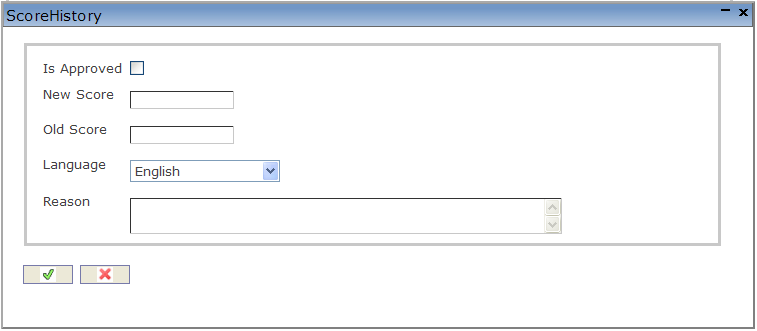
 - Enter the new Score History information. Fields with an asterisk are mandatory fields.
- Select Is Approved, as required. It is not selected by default.
- Enter the New Score, Old Score, select the Language from the drop-down box, and enter the Reason, as required.
- Is Approved: If checked, the change is approved by the Hiring Manager.
- New Score: New score replacing the old score.
- Old Score: Old Interview Score.
- Reason: Reason to change Interview Score.
Click on the Save and Return icon to save the Score History information and return to the Interview Score screen, or click on the Discard icon to discard the Score History entry and return to the Interview Score screen.