Job Offer Summary Report
Overview
The Job Offer Summary Report shows the status of all job offers.
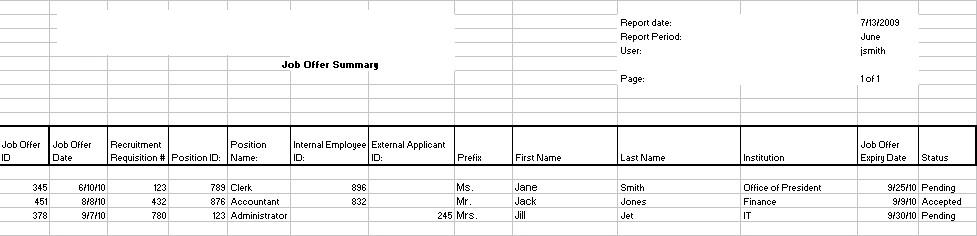
An example of the report is shown below.
Navigation 
Definition of Report Fields
The Job Offer Summary Report includes the following fields:
| Report Fields | Description |
| Report Date | Date of report generation automatically generated by the system |
| Report Period | Period of report generation automatically generated by the system |
| User | User who generates the report |
| Page | Page Number |
| Job Offer ID | Unique identification code related to the job offer |
| Job Offer Date | The date the job was offered to the applicant |
| Recruitment Requisition # | Number associated to the recruitment requisition |
| Position ID | Unique identification code related to the position |
| Position Name | Title of the job being applied for |
| Internal Employee ID | Unique identification code related to the internal employee |
| External Applicant ID | Unique identification code related to the external applicant |
| Prefix | Designates the introduction of the applicant (ex. Mr., Mrs., etc.) |
| First Name | Applicant's first given name |
| Last Name | Applicant's last given name |
| Institution | The institution associated to the position in the job offer (ex. Office of the President, Finance, etc.) |
| Job Offer Expiry Date | The date when the job offer expires |
| Status | Defines the current status of the job offer (ex. Accepted, Declined, Pending, etc.) |
Generation of the Report
The Job Offer Summary Report shows the status of all job offers.
To GENERATE the Job Offer Summary Report, follow the steps below:
Navigation
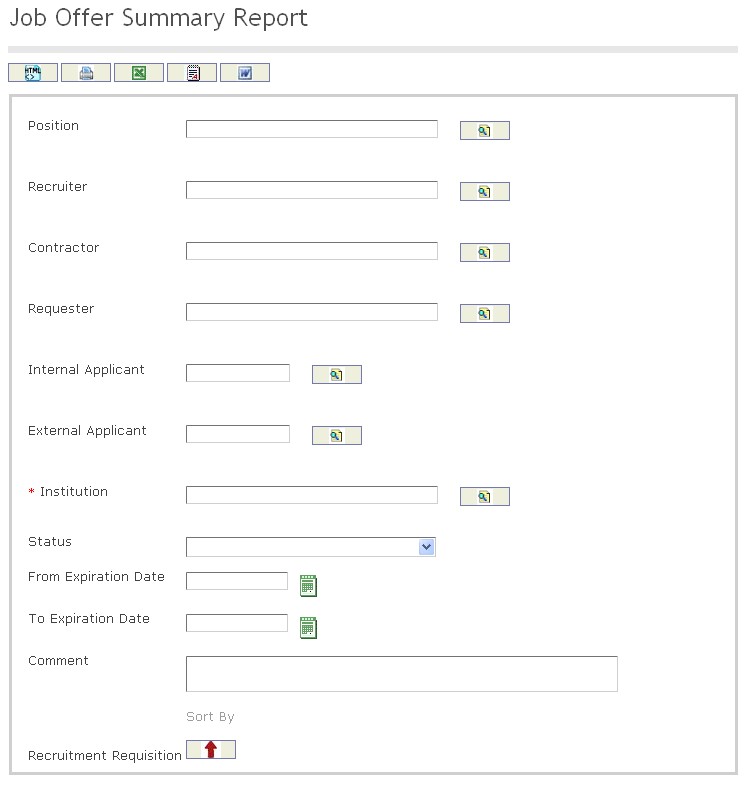
The Job Offer Summary Report includes the following filter criteria available for the report:
- Position - Position (optional parameter) can be selected using the Lookup icon
 , and Find icon
  to retrieve the Position. If selected, the report will include the selected Position
 - Recruiter - Recruiter (optional parameter) can be selected using the Lookup icon , and Find icon to retrieve the Recruiter. If selected, the report will include the selected Recruiter
- Contractor - Contractor (optional parameter) can be selected using the Lookup icon , and Find icon to retrieve the Contractor. If selected, the report will include the selected Contractor
- Requester - Requester (optional parameter) can be selected using the Lookup icon , and Find icon to retrieve the Requester. If selected, the report will include the selected Requester
- Internal Applicant - Internal Applicant (optional parameter) can be selected using the Lookup icon , and Find icon to retrieve the Internal Applicant. If selected, the report will include the selected Internal Applicant
- External Applicant - External Applicant (optional parameter) can be selected using the Lookup icon , and Find icon to retrieve the External Applicant. If selected, the report will include the selected External Applicant
- Institution - Institution (optional parameter) can be selected using the Lookup icon , and Find icon to retrieve the Institution. If selected, the report will include the selected Institution
- Status - Select the status from the drop-down menu.
- From Expiration Date - Enter the From Expiration Date (optional parameter) by using the calendar icon

- To Expiration Date - Enter the To Expiration Date (optional parameter) by using the calendar icon
- Comment - Enter comments to the Job Offer Summary Report, as required.
- Sort By - Sort the Recruitment Requisition by the preferred ascending and descending order using the red arrow icon

If all filter criteria are left blank, all Positions, Recruiters, Contractors, Requesters, Internal Applicants, External Applicants, Institutions, Statuses, From Expiration Dates, To Expiration Dates, and Comments will be included in the Report, as well as the Positions, Recruiters, Contractors, Requesters, Internal Applicants, External Applicants, and Institutions allowed by the report user security profile.
The report can be exported in HTML, PDF, MS Excel, RTF and MS Word formats, prior to printing, using the  ,
,  ,
,  ,
,  , and
, and  icons.