Material Received Returned
Overview
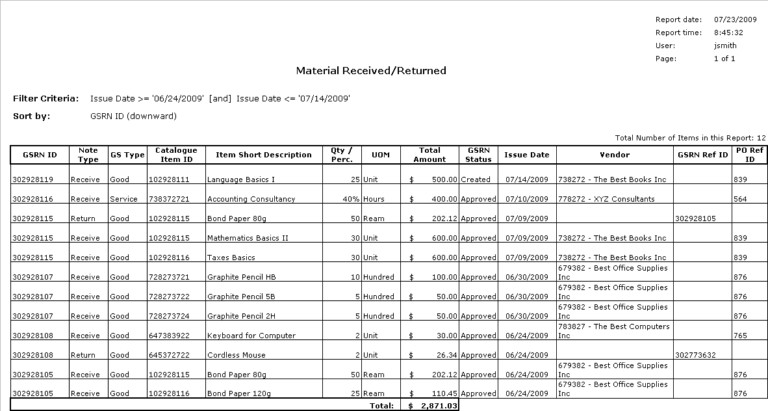
Material Received Returned includes a list of the Material Items received/returned by an Institution Unit. It contains information of each Item Received/Returned such as Good/Service Received Note (GSRN) ID, Note Type (Receive or Return), GS Type (Good or Service), Catalogue Item, Item Short Description, Quantity, Total Cost, Vendor, Purchase Order (PO) Ref ID, etc.
An example of the report is shown below.
Navigation 
Definition of Report Fields
Material Received Returned Report includes the following fields:
| Report Fields | Description |
| Report Date | The date the report was created |
| Report Time | The time the reports was created |
| User | The person creating the report |
| Page | Represents the number of pages the report has |
| Filter Criteria | Filter Criteria as entered under Asset Valuation Report |
| Sort By | Describes how the report is ordered (i.e. GSRN ID (downward)) |
| GSRN ID | Good/Service Received Note unique identification number |
| Note Type | Receive or Return |
| GS Type | Refers to the Good or Service type |
| Catalogue Item ID | Unique identification number describing the material |
| Item Short Description | Short text describing the material |
| Qty / Perc. | Refers to the number of materials |
| UOM | Stand for Unit of Measurement used to measure the material (unit, hours, ream, hundred) |
| Total Amount | The total cost of the materials |
| GSRN Status | Refers to the current status of the Good/Service Received Note (i.e. Created, Approved) |
| Issue Date | Describes the date the material was received or returned |
| Vendor | Refers to the supplier of the asset (material) |
| GSRN Ref ID | Good/Service Received Note unique transaction reference identification number |
| PO Ref ID | Purchase Order Unique reference number |
Generation of the Report
A Material Received Returned report that describes if an inventory item has been returned or received.
To GENERATE, follow the steps below:
Navigation
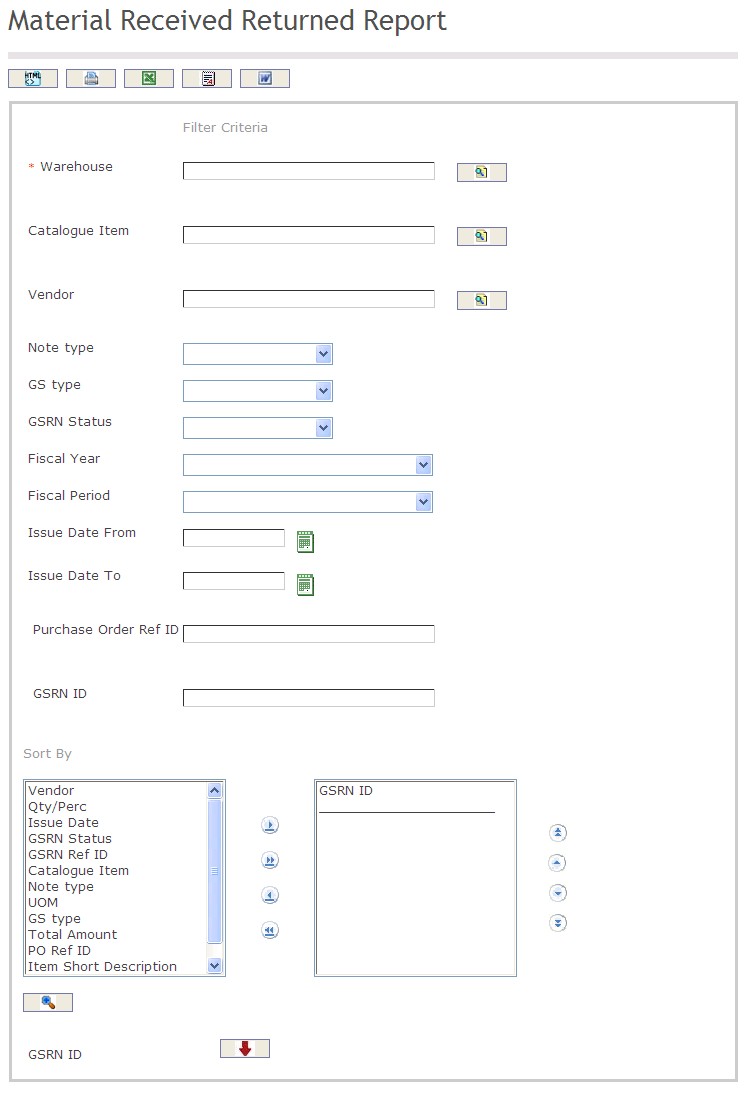
The Material Received Returned Report includes the following filter criteria available for the report:
- Warehouse: To enter the Warehouse, if required, click on the Lookup icon
 , click on Find icon
  to retrieve the Warehouse list, then select the Warehouse.
 - Catalogue Item: To enter the Catalogue Item, if required, click on the Lookup icon , click on Find icon to retrieve the Catalogue Item list, then select the Catalogue Item.
- Vendor: To enter the Vendor, if required, click on the Lookup icon , click on Find icon to retrieve the Vendor list, then select the Vendor.
- Note Type: Select the Note Type from the drop-down menu.
- GS Type: Select the GS Type from the drop-down menu.
- GSRN Status: Select the GSRN Status from the drop-down menu.
- Fiscal Year: Select the Fiscal Year from the drop-down menu.
- Fiscal Period: Select the Fiscal Period from the drop-down menu.
- Issue Date From: Enter the Issue Date From (optional parameter) that can be selected by using the calendar icon
 .
. - Issue Date To: Enter the Issue Date To (optional parameter) that can be selected by using the calendar icon .
- Enter the Purchase Order Ref ID and the GSRN ID as required.
- Sort By: Click the
 ,
,  ,
, ,
,  icons to add and remove filter criteria to / from the selected list and click the
  ,
,  ,
,  ,
,  icons to move the items in the selected list up and down to put them in the desired order of appearance
 - Sort all the different Levels by the preferred ascending and descending order using the Red Arrow icons
 .
.
If all filter criteria’s are left blank, all Warehouse, Catalogue Item ID, Issue Date From and Issue Date To will be included in the Report, as well as the Institutions allowed by the report user security profile.
The report can be exported in HTML, PDF, MS Excel, RTF and MS Word formats, prior to printing, using the  ,
,  ,
,  ,
,  , and
, and  icons.