
FreeBalance Accountability Suite
Buscar
Inicio de sesión
 English
 Français
 монгол
 Português
 Español
Add a News Article
The E-Procurement Portal allows News Articles to be shared with all Users. The News Article feature keeps Users current will all News pertaining to Government Procurement.
To ADD a News Article, click the corresponding link in the User Menu. A list of News Articles is presented, ordered by Published Date.
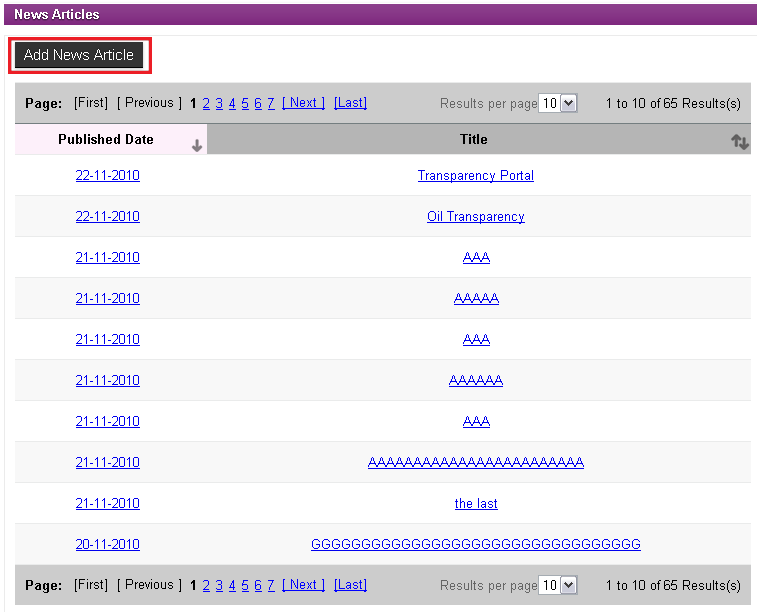
Click the  icon to compose a New Article. A page displaying the editor tool is presented.
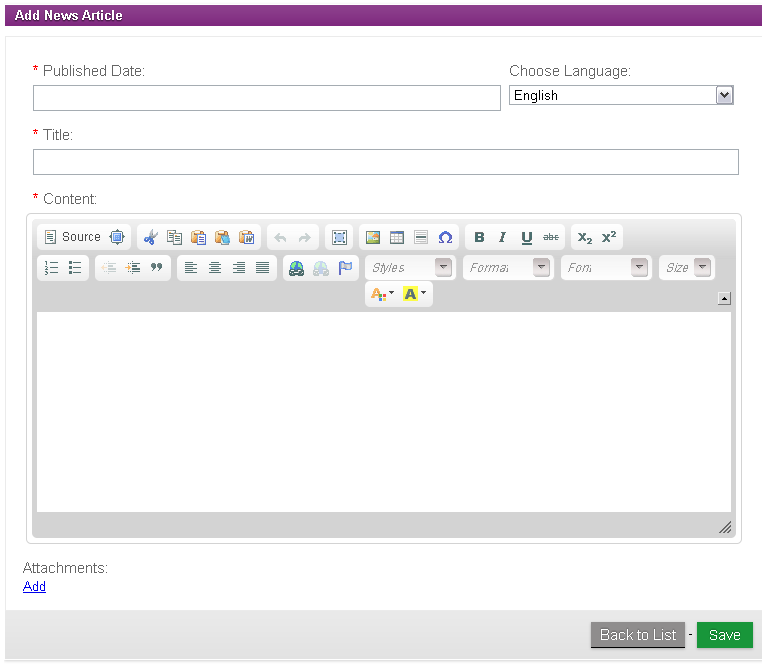
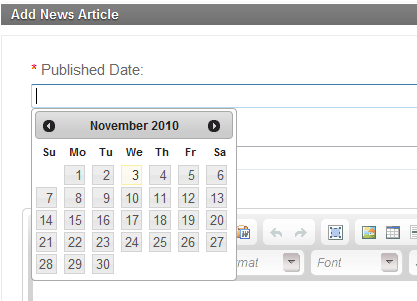
Enter Published Date from the Calendar tool. Date indicates the date the News Article was initially published from a media outlet.
Select Language from the drop-down menu.
Enter Title of the News Article.
Enter Body of the News Article in the Content window.
To ADD an Attachment, click Add link at the bottom of page. The New Attachment window will appear.
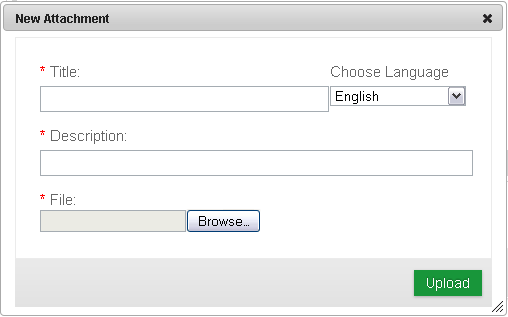
1. Enter Title of Attachment.
2. Select Language of Attachment from drop-down menu.
3. Enter Description for Attachment.
4. Select Attached File by clicking the  icon. Select the file you wish to Attach.
5. Click the  icon to Attach the File and return to the Add News Article page.
Click the  icon to Publish and Save the Added News Article.
Click the  icon to discard changes and return to the list of News Articles.
NOTE: The process must be repeated for each mandatory Language.