FreeBalance Accountability Suite
Recherche
User login
 English
 Français
 монгол
 Português
 Español
Create a Review Promotion
The Review Promotion screen holds the reviewers (people who participate but don't make final decision) of the promotion and their comments.
To CREATE a Review Promotion, follow the steps below:
Navigation 
By default, you will be in Search Mode.
- Click on the New icon
 (you will then be in Insert Mode).
 - Enter the new Review Promotion information. Fields with an asterisk
 are mandatory fields.
 - Enter the Code, as required.
- Code: Unique identification code of the Review Promotion
4. Click on the Agree checkbox, as required.
- Agree: If agreed, reviewer agrees to the employee's proposed promotion. By default, this field is checked
5. Enter the Commentary Date.
- Commentary Date: This is a view only date. It is the System date and it is not editable. Provided when reviewer provides commentary
6. To enter the Promotion Proposal, if required, click on the Lookup icon  , click on the Find icon
  to retrieve the Promotion Proposal list, then select the Promotion Proposal.
- Promotion Proposal: Holds the promotion proposal information for a given employee
7. Select the Language from the drop-down menu.
- Language: Language used
8. Enter a Comment.
- Comment: Commentary by the designated reviewer on the proposed employee's promotion
To ADD Attachments to the Review Promotions, if required:
1. Click on the  tab and then click on the New icon
  to enter file Attachments (refer to Attachments for more information).
2. Click on the Save and Return icon  to save the Attachment information and return to the Review Promotions screen, or click on the Discard icon
  to discard the Attachment entry and return to the Review Promotions screen.
3. Click the Remove icon  to remove the selected Attachment information, if required.
4. Click the individual Select Checkbox (es) to select and de-select the Attachment, as required, or click the Select All icon  or Unselect All
  icon, to select all Attachments or de-select all Attachments, if required.
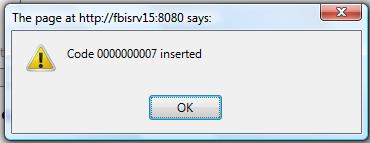
Click on the Save icon  at the bottom of the Review Promotions page to save your new Review Promotions information. A window will appear to confirm.