
FreeBalance Accountability Suite
Search
User login
 English
 Français
 монгол
 Português
 Español
Add Custom Content Page
Tue, 2011-03-29 12:29 — jcarr
To access the Manage Content option, click the corresponding link in the User Menu.
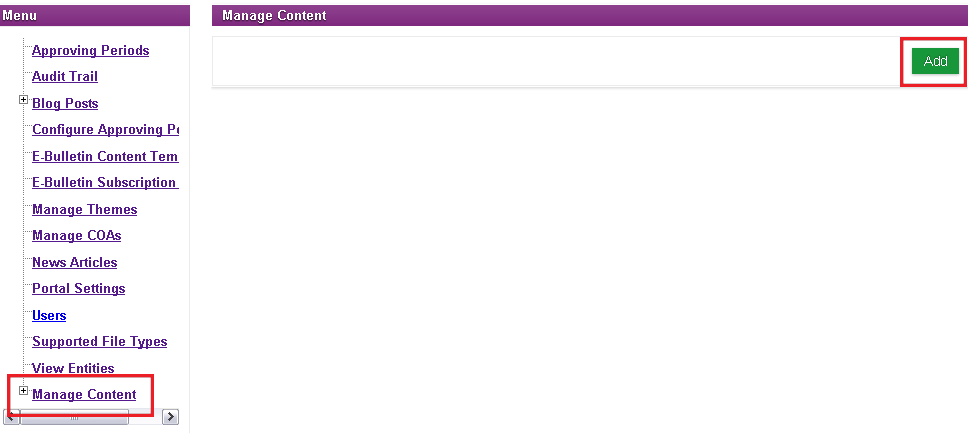
Click the  icon to view the Portal editor tool.
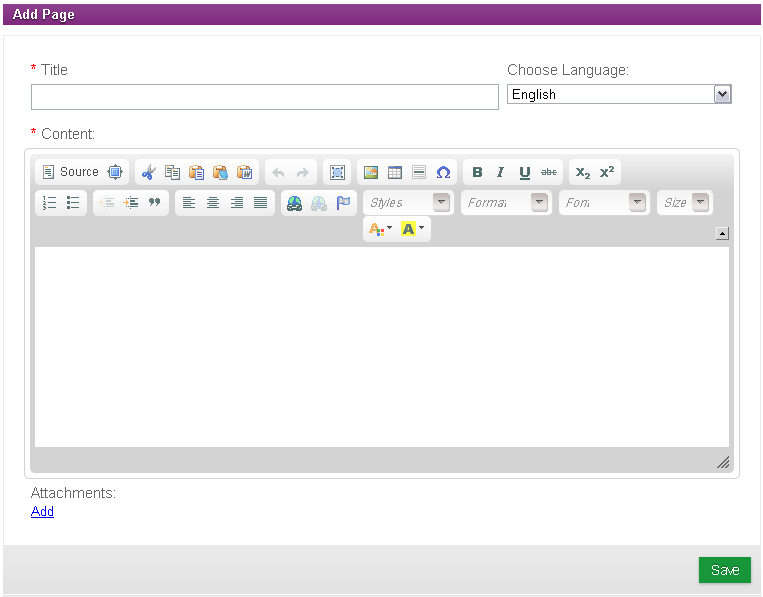
Select Language from the drop-down menu.
Enter Title of the Page.
Enter Body of the Page in the Content window.
To ADD an Attachment, click Add link at the bottom of page. The New Attachment window will appear.
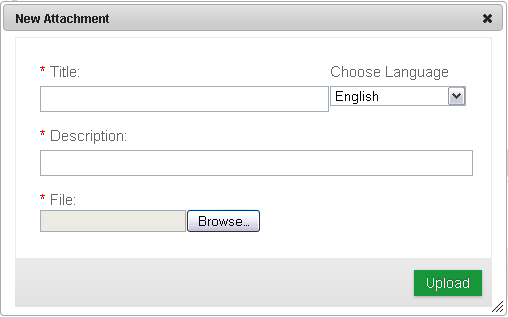
1. Enter Title of Attachment.
2. Select Language of Attachment from drop-down menu.
3. Enter Description for Attachment.
4. Select Attached File by clicking the  icon. Select the file you wish to Attach.
5. Click the  icon to Attach the File and return to the Manage Content page.
Click the  icon to Save the Added Content.
NOTE: The process must be repeated for each mandatory Language.